1. Zithoogte
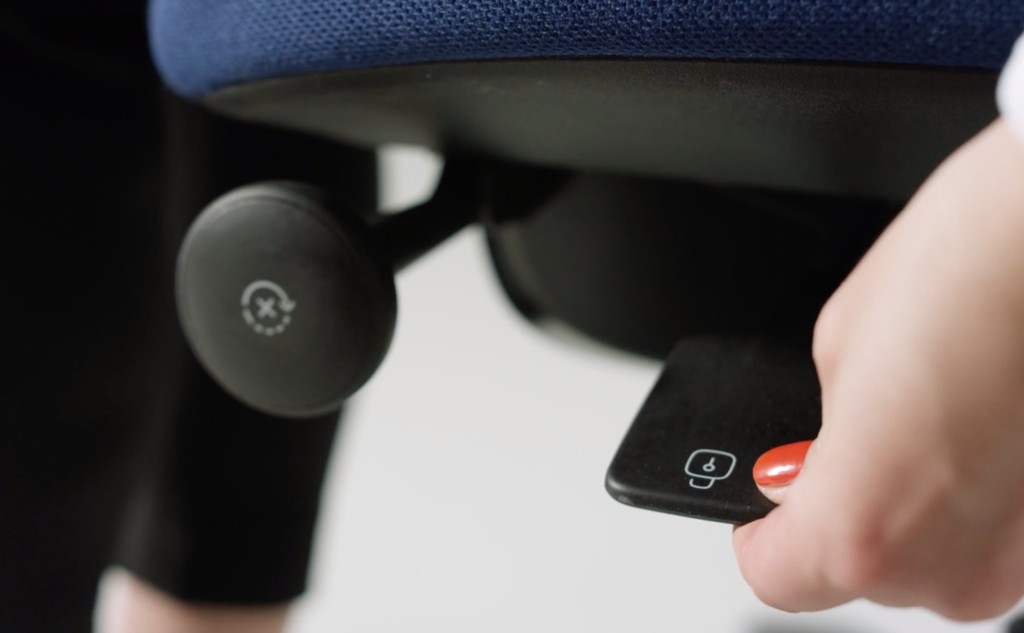
Use the lever on the right-hand side under the seat. Raise or lower the chair until your feet rest firmly on the floor or on a footrest. Ideally, your knees are in an open angle slightly greater than 90°. Rest your arms comfortably on the desk, without lifting your shoulders.
2. Seat depth
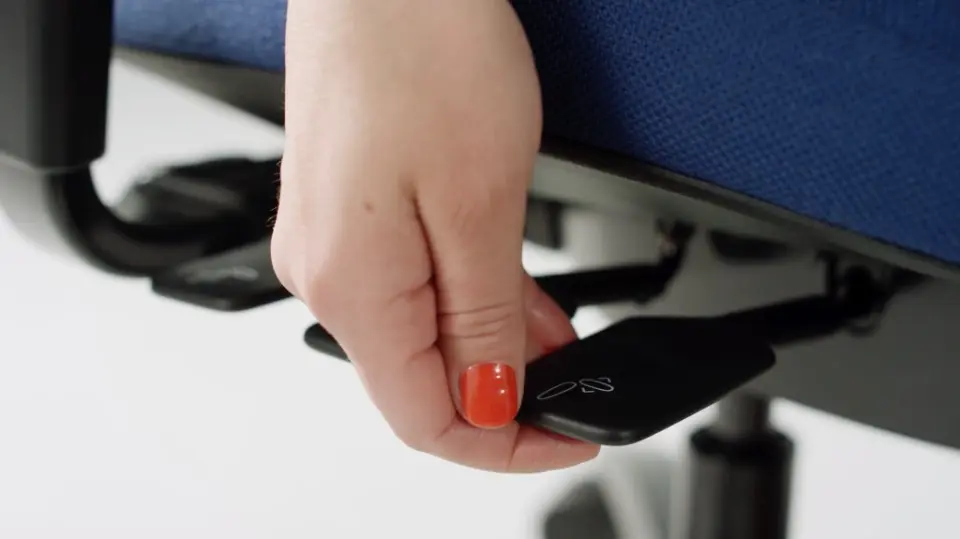
Use the second lever on the right under the seat. Slide the seat forward or backward until it feels right. Your seat depth is correct when there is about 3 fingers (or a fist) of space between the front of the seat and the back of your knees. This gives you enough support without pressure behind your knees.
3. Backrest angle
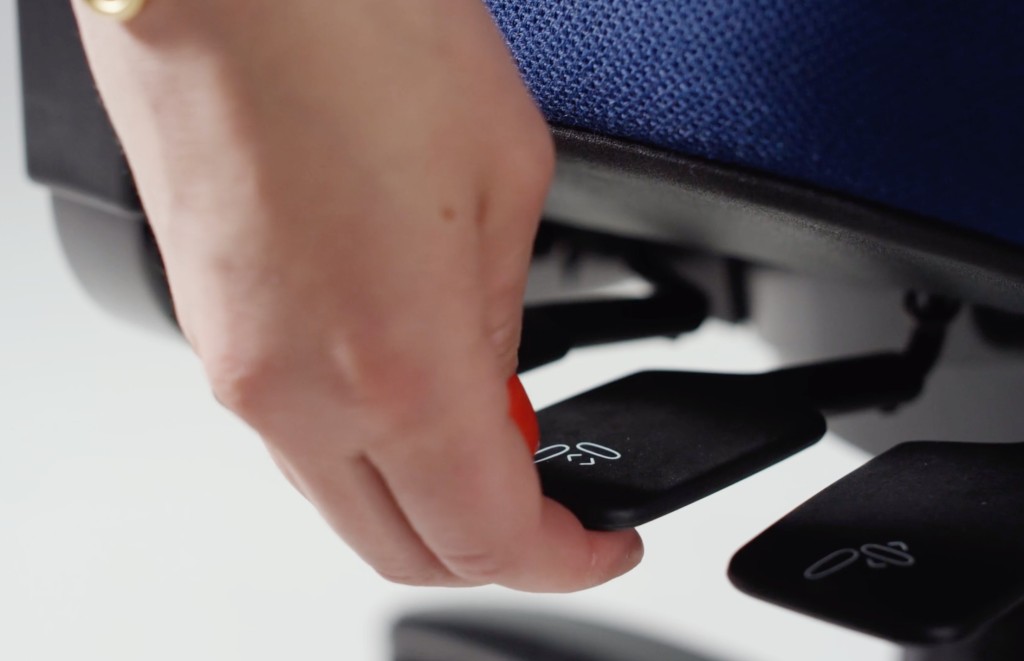
Use the third lever on the right under the seat. Hold the lever and lean your upper body slightly backward or forward. Release the lever at the angle that feels comfortable. The backrest will stay in that position.
Tip: choose a light, open angle rather than sitting completely upright. This usually feels more comfortable during long workdays.
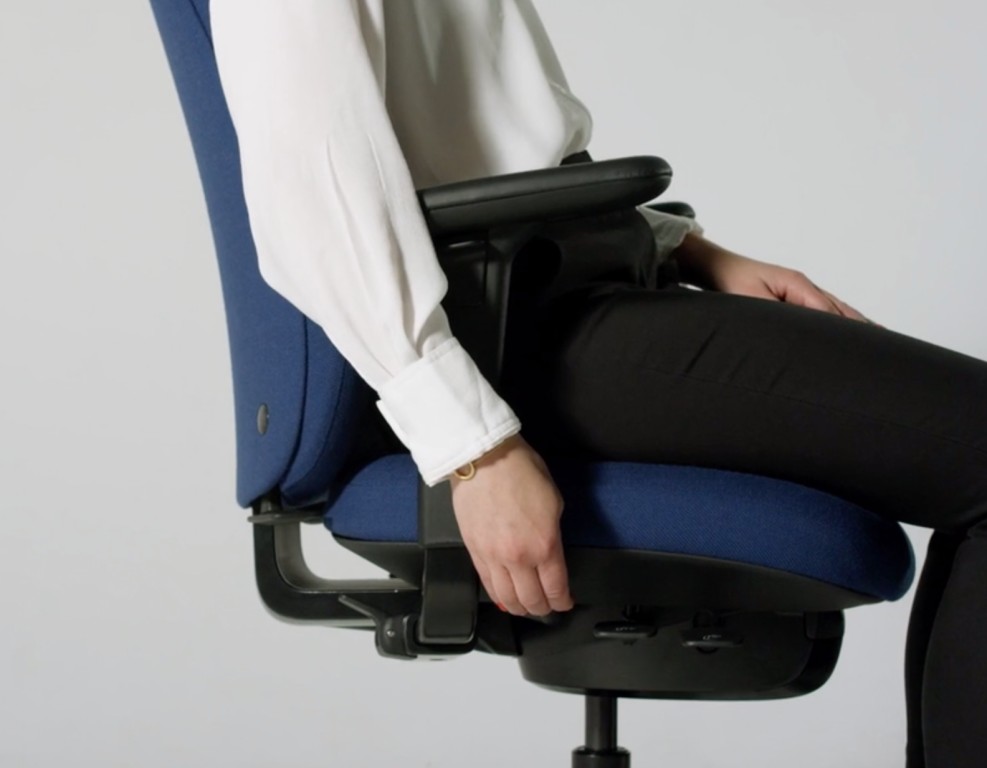
4. Backrest height
Use the lever on the right side of the backrest. You can adjust this while sitting on the chair. Hold the lever and move the backrest up or down. Release the lever to lock it.
You’re sitting well when the lumbar support fits nicely into your lower back and you feel clear, comfortable support there.
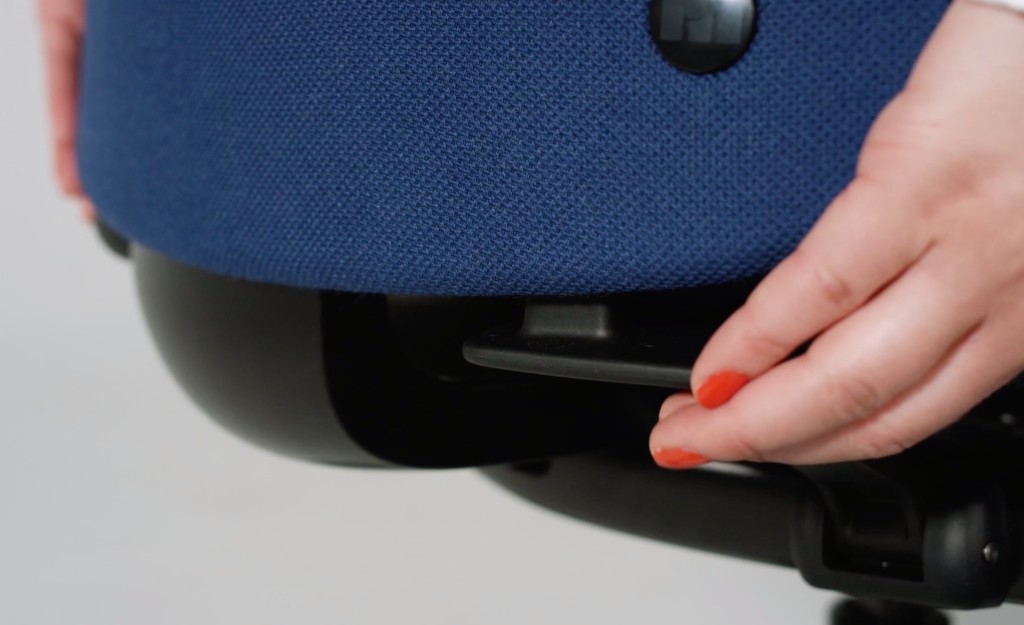
5. Lumbar support
Want extra support in your lower back? Inflate the lumbar support using the pump. Pump until you feel clear, comfortable support.
Want less support? Press the valve to release air. This lets you fine-tune the support to what feels best for you.
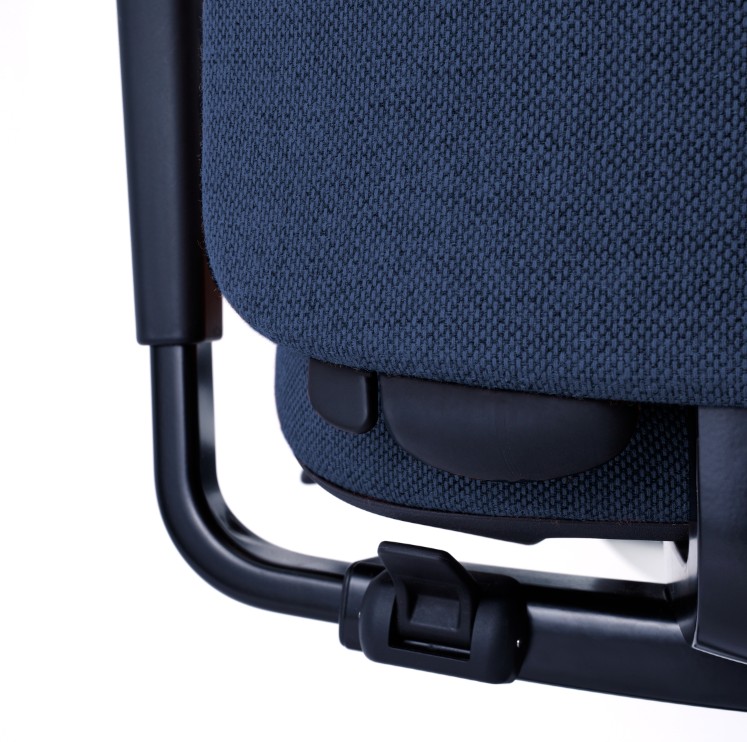
6. Tilt resistance
Use the adjustment knob on the left under the seat to set the resistance of the movement. Turn forward = less resistance (lighter). Turn backward = more resistance (heavier).
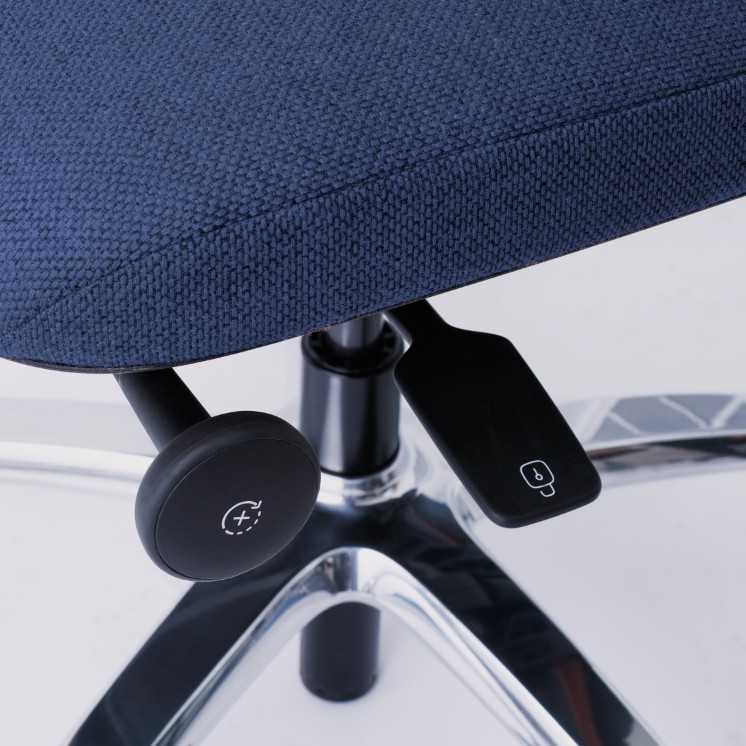
4a. Lock the tilt mechanism
Use the adjustment knob on the left under the seat to set the resistance of the movement. Turn forward = less resistance (lighter). Turn backward = more resistance (heavier).
Tip: we recommend keeping the chair in motion most of the time. Dynamic sitting is better for your body than sitting “locked” all day.